



Resetting Your Password
You have tried to log into the online store, and you get this:
Error: Sorry, there is no match for that email address and/or password.
- Make sure that you are using the email address that you used when you last logged in.
- Make sure that the Caps Lock is not on.
- Type your password carefully.
If you forgot your password, you will need to reset your password. Here's how:
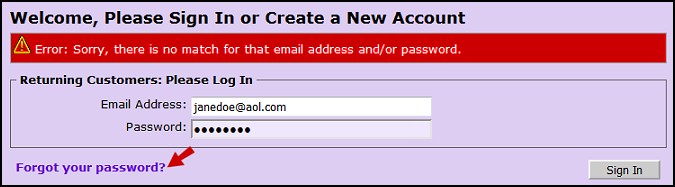
- On the login screen, click the Forgot your password? link.
- On the next screen, type your email address and click the [Submit the information] button.
- You will be sent a new password to your email address. When you get it, copy it to the Clipboard. (Highlight it and select Edit > Copy from the top menu.)
- Now on the login page, paste the password into the Password: box. (Select Edit > Paste from the
top menu.) - Click the [Sign In] button.
You will probably want to change your password to something you can more easily remember:
- Click on the My Account link at the top of the page.
- On the next screen, click the Change my account password link.
- On the next screen, paste the temporary password (the one that was sent to you by email) into
the Current Password: box. - Type your desired password into the New Password: and Confirm Password: boxes.
- Click the [Submit the Information] button.
That's it! You might want to write down the new password and keep it in a safe place.